Same CRM. A smaller org.
A Leader gets the same screens as a Manager — Dashboard, Team Lead Base, Team Pipeline, Team Renewals, Team Calendar, Reports, My Performance — every one of them automatically filtered down to just their own agents. Nothing new to learn; just narrower.
Everything is scoped to your line
There's no separate "Leader mode" screen to learn — it's the exact same pages from Chapter 1, the CRM just quietly filters every one of them down to agents assigned to you.
| Page | What a Leader sees |
|---|---|
| Dashboard | KPIs and welcome summary for your line only |
| Team Lead Base / Pipeline | Leads and deals belonging to your agents (plus your own, if you sell too) |
| Team Renewals / Clients | Only clients your agents brought in |
| Team Calendar | "My Team" = your agents only, not the whole org |
| Weekly Reports / Reports | Your agents' submissions and scorecards |
| Commission Rates | Your own rate as the ceiling, and a rate field for each of your agents underneath it |
This is why role and "Assigned To" matter so much when a Manager first creates an agent — get the assignment wrong at creation, and their activity silently shows up in the wrong Leader's numbers instead of an error.
Your Dashboard — same layout, your line only
Open Dashboard as a Leader and it's pixel-identical to the Manager's — same KPI tiles, same Team Commissions table — except the welcome banner counts only your agents, and every row below it is filtered to your line before it ever reaches the screen.
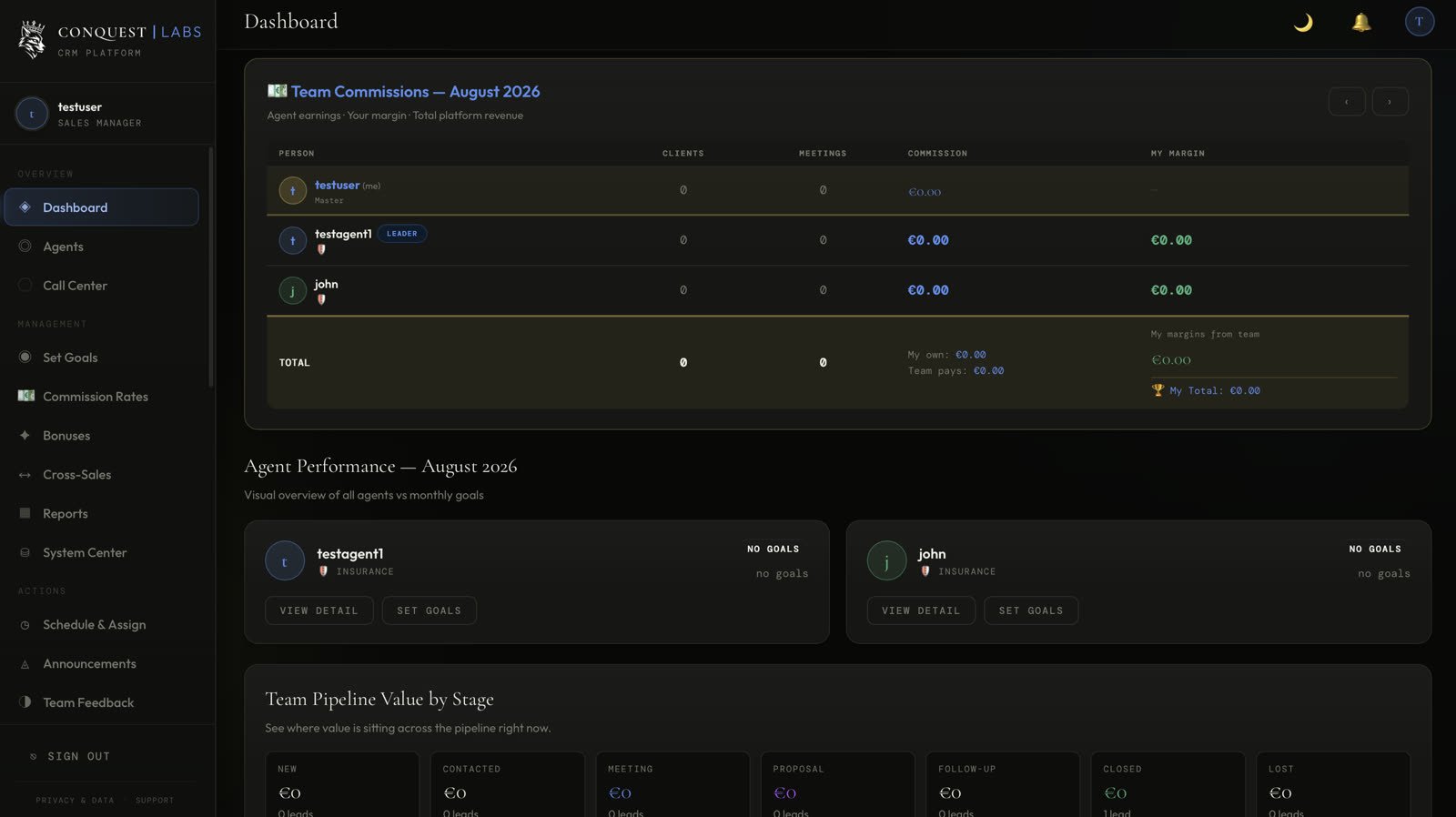
Welcome back, testagent1
2 agents on your line · 0 hot leads · 0 renewals ≤30 days · 0 clients under your line.
| Person | Clients | Meetings | Commission | My Margin |
|---|---|---|---|---|
| ttestagent1 (me) · Leader | 0 | 0 | €0.00 | — |
| jjohn | 0 | 0 | €0.00 | €0.00 |
- 1 The welcome banner headcount and every KPI tile counts your agents only — a Manager's Dashboard shows the same tiles counting the whole org.
- 2 The Team Commissions table lists only you and your direct agents — no other Leader's line appears here, ever.
Commission Rates — setting your agents' rates
Once a Manager has set your rate, you get your own Commission Rates page — narrower than theirs, but the same mechanic: your rate is the ceiling, the gap between it and your agent's rate is your margin.
- 1 Your own rate shows as read-only here — you can see your ceiling, but only a Manager can raise it.
- 2 Every agent field you can edit is capped automatically at your rate; the CRM won't let you type in a number above it.
What you can — and can't — do
You can
- Add your own agents (Agents → + Add Agent)
- Set each of your agents' commission rates — capped at your own rate
- Assign bonuses and give feedback to your agents
- Work leads, run pipeline, book meetings, add clients — same as any agent
- Book and convert cross-sale meetings
You can't
- Add call-center accounts (Master only)
- Raise your own commission rate — only a Master moves the ceiling
- See other Leaders' lines or agents not assigned to you
- Set the final Referrer Split % on a cross-sale — a Manager approves that
- Open System Center
That's the full Leader guide.
Use this as your role-specific daily guide. For a field-by-field explanation shared across roles, open Chapter 1. Questions? Ask in this Skool group.